
How to configure the Discount Promotion Upsell Campaign
Looking to offer a straightforward discount to boost sales on specific items? Our Discount Promotion Campaign tool makes it simple! This guide will show you how to set up promotions that automatically apply either a percentage discount (e.g., 10% off) or a fixed amount off each item (e.g., $5 off) on products you select. Dive in to learn how to configure this feature.

Note: The Upsell Discount Promotion campaign is only available in the Professional plan.
On this page:
- Configuring the campaign
- Product page configuration
- Cart page configuration
- Pop up configuration
- Product targeting configuration
Configuring the campaign
- To get started, add a campaign and select the Discount Promotion campaign.

-
Select the items you want to include in the campaign. You can choose from products or collections.
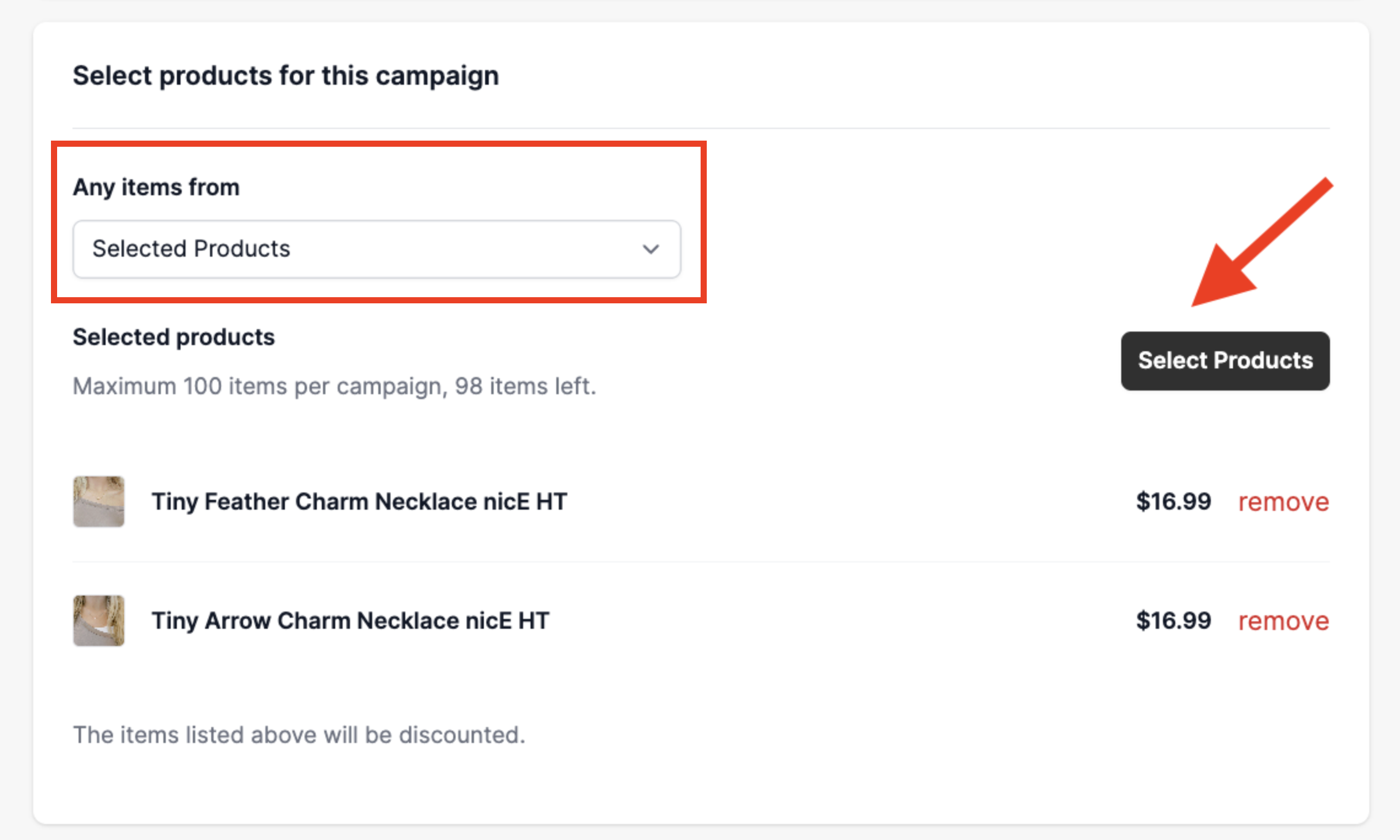
3. Select how you want to apply the discount. In this example, we will be choosing the Percentage discount.

Note: The app automatically applies this discount; you do not need to create a separate discount in Shopify.
That's it for the initial setup! Next, we will look at how you can configure the display of the campaign so that it is advertised on your Product and Cart pages, and as a Pop-up.
Product page configuration
By default, the Discount Promotion offer will appear on your product pages. If you prefer not to display it there, you can easily disable it by toggling this button:

Our app offers two levels of customization for your product page display:
- Basic Configs: Provides essential settings.
- Full Configs: Unlocks more advanced options, including font size, font weight, background color, and more, allowing for deeper visual personalization.

Customize the appearance of your Discount Promotion Campaign on the product page with a variety of options. You can easily adjust the title, text color, price colors, and the "Add to cart" button, and other elements.

Cart page configuration
The Cart page configuration is where you customize the Discount Promotion that appears as a pop-up when customers click the cart page widget button.
Here's an example of what it looks like in the store:

By default, the Discount Promotion offer will appear on your cart page. If you prefer not to display it there, you can easily disable it by toggling this button:

Just like the Product page configuration, you can customize the appearance of your Discount Promotion campaign on the cart page with a variety of options using the Basic configs or Full configs. You can easily adjust the button text, text color, background color, and other elements.

Pop-up configuration
The Pop-up configuration is where you can customize the pop-up that appears when customers click either the product page widget edit button or the cart page widget button.
Here's an example of what it looks like in the store:

Just like other campaign configurations, you can customize the appearance of your popup for the Discount Promotion with a variety of options using the Basic configs or Full configs. You can easily adjust the button text, text color, background color, and other elements to match your brand.

Product Targeting Configuration
The Display Options section controls which products will feature the discount promotion campaign on your storefront. This allows you to target the visibility of your promotion, ensuring it only appears on the products that fit your campaign criteria.
- Display on the discounted products: This option is selected by default. The Discount Promotion will appear on the discounted products you have selected for this campaign.
- Display on selected products: This option lets you manually choose specific products where the discount promotion should appear.
- Display on all Products: The discount promotion campaign will appear on every product page in your store, regardless of whether that product is currently on sale or not.

Once everything is set up, make sure to save your campaign, and that's it!

That's everything you need to know to increase your sales by setting up a Discount Promotion offer on your store with our app!
If you have any further questions or concerns about this campaign, please feel free to reach out to us at help@hextom.com, and we'll be happy to help!